How to Use AI Agents at Work: A Non-Developer’s 3-Question Filter
How to Use AI Agents at Work: A Non-Developer’s 3-Question Filter
Last Tuesday at 8:47 a.m., my morning briefing agent surfaced a calendar invite I hadn’t seen yet and a one-line summary of a Slack thread that was meant to be private. The summary was wrong, the invite was for a meeting that had been moved, and I was already on the subway. That’s the part nobody puts in a “how to use AI agents at work” guide — what it looks like when the agent quietly does the wrong job and you find out two stations later.
I’ll walk through the 3-question filter I run before I set up any agent, the three different things people lump together under the word “agent,” the one I actually use every weekday, what broke last week, and the line I won’t cross because my IT team would shut me down inside a week.
Here’s the preview: you don’t need ten use cases for AI agents at work. You need one agent, scoped small, with a kill switch you trust.
The 3-question filter I use before I set up any agent
Most guides about AI agents at work hand you a list of ten ideas. That’s the wrong unit. I can’t run ten new things at once and neither can you. So I cut every idea I see down to a single sentence, then I run it through three questions.
1. Can I write the goal in one sentence a coworker would understand?
If the goal needs a paragraph, the agent will need a paragraph too, and it will drift. “Summarize my unread newsletters into three bullets by 8 a.m.” is a one-sentence goal. “Help me manage my inbox better” is not.
2. Can I see what it’s doing without logging into a developer dashboard?
If the only way to inspect the agent’s behavior is a JSON log inside a vendor console, I won’t run it on anything that matters. I need a Notion page, a Gmail draft, or a Slack DM I can scan in ten seconds.
3. What’s the kill switch, and can I hit it from my phone?
Every agent I run has a single off switch — usually a toggle in the no-code platform — and I’ve tested it from my phone at least once. If killing the agent requires SSH or a laptop, it’s not ready for my actual work life.
Anthropic’s Building effective agents makes the same point in more technical language: give the agent less autonomy than you think it needs, and design the human-in-the-loop step before you design the smart part. The filter above is the non-developer version of that.
I don’t run anything that fails one of these three. That’s the entire framework.
Three different things people call “AI agents at work”
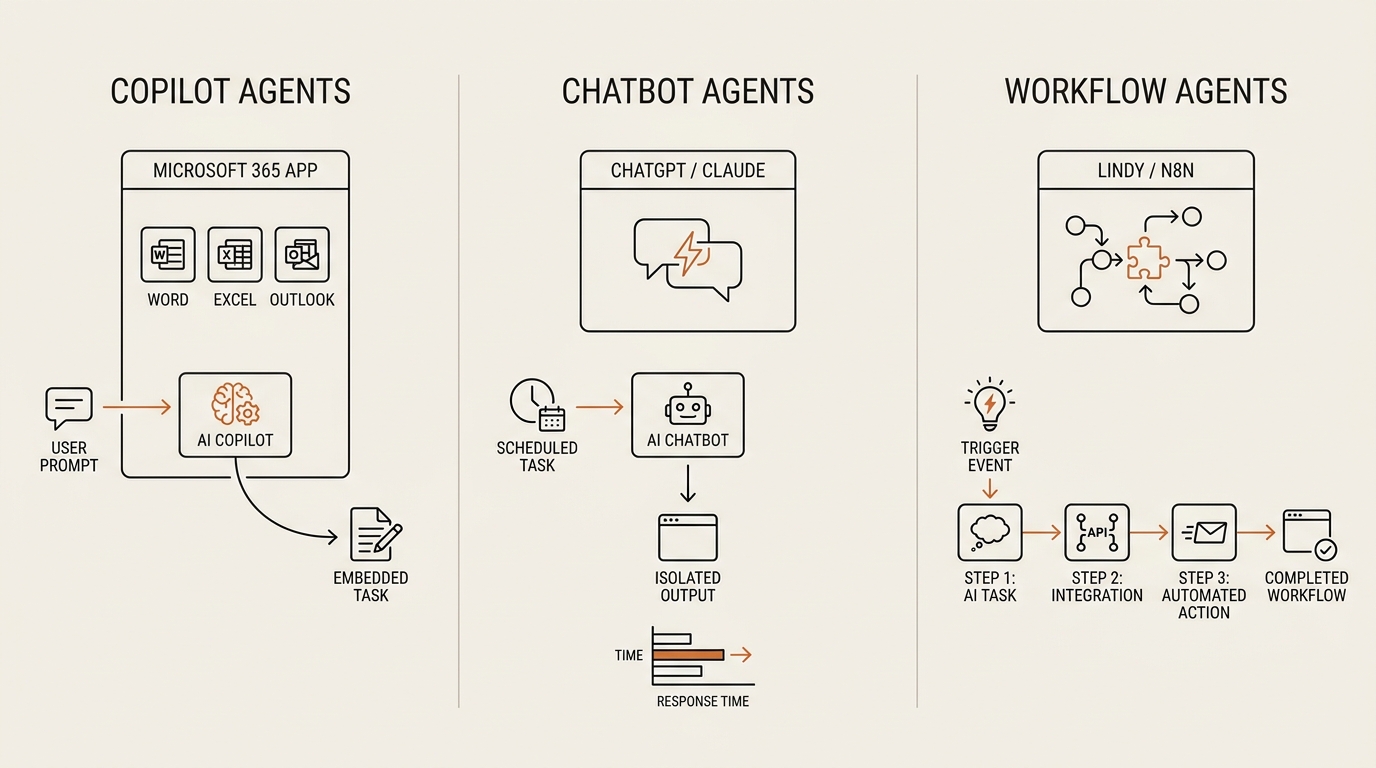
When a coworker says “I’m using an AI agent,” they almost always mean one of three different things. The SERP doesn’t sort them out. Here’s how I sort them.
| Type | What it actually is | Where it runs | Who controls it |
|---|---|---|---|
| Copilot-style agents | Pre-built skills inside Microsoft 365 or Google Workspace | Inside your work suite | Your employer / IT |
| Chatbot tasks | Scheduled prompts in ChatGPT, Claude Projects, or Gemini | On your personal account | You |
| No-code workflow agents | Multi-step automations in Lindy, n8n, Make, or Zapier | On a third-party platform | You, if IT permits |
The three behave differently and they fail differently.
Copilot-style agents are the ones your company might roll out. They live inside Word, Outlook, or Google Docs. You don’t choose them; IT does. The Microsoft Work Trend Index tracks how organizations are deploying them as “human-agent teams” and reports that the bottleneck is rarely the model — it’s the policy layer around it. If your company hasn’t enabled these, you can’t will them into existence.
Chatbot tasks are the smallest, safest entry point. ChatGPT Tasks and Claude Projects let you save a prompt with a schedule. “Every Monday at 7 a.m., summarize the three top Hacker News stories about AI agents.” That’s an agent in the soft sense — it runs without you pressing a button. It’s also the version I tell most office workers to start with, because if it breaks, nothing breaks at work.
No-code workflow agents are the most powerful and the most dangerous. Lindy, n8n, and Make can chain Gmail → Notion → Slack with conditional logic. They can also leak data sideways if you wire a trigger wrong. This is the type I learned the hard way to scope down. I wrote up that learning in how to build an AI agent without coding, and the short version is: build the smallest version first, then add one tool at a time.
McKinsey’s Superagency in the workplace report frames the same split slightly differently — they call it the gap between enterprise-controlled AI and worker-controlled AI. As a non-developer office worker, you almost always live in the second column. That’s where the leverage is.
The agent I actually run this week
The agent I run every weekday is the morning briefing one. I documented the full build of my first no-code AI agent at work — this section is what the agent looks like after six weeks of using it, not the day-one build.
Here’s the one-sentence goal: by 7:30 a.m., I want a single Notion page with three things — the meetings on my calendar today, the unread messages flagged “important” in my work email, and the top three newsletters in my personal inbox that match my watchlist (AI agents, LLM tooling, semiconductor news).
The pipeline runs in five steps:
- Trigger: cron at 7:15 a.m.
- Read: pull from Google Calendar (today’s events), Gmail (last 12 hours of starred items), and an RSS aggregator (overnight newsletters).
- Filter: drop anything older than 12 hours, anything I’ve already replied to, anything matching a sender on my mute list.
- Summarize: send the filtered payload to Claude with a prompt that produces three bullets per source, max 18 words each.
- Write: append the result to a Notion page titled “Today” and ping me on Telegram.
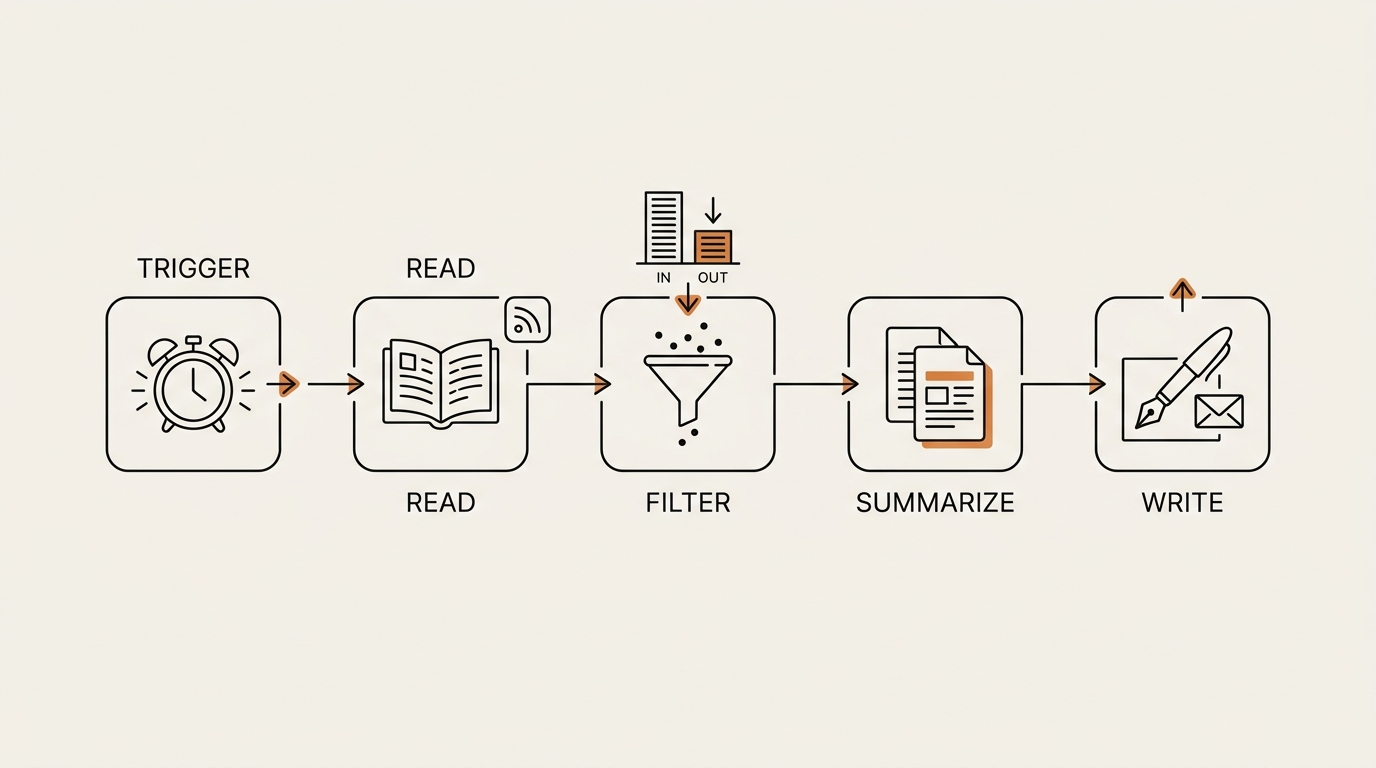
A few things matter about this build.
The trigger is time-based, not event-based. Event triggers (every new email, every calendar change) sound smarter but they’re how you end up with an agent that runs 400 times a day. Time triggers cap the cost ceiling automatically.
The summarize step has a token budget cap. If the payload is too big, the agent drops the lowest-priority source first — usually newsletters — before sending anything to Claude. That’s what keeps the daily cost small. I’m not going to give you a fake number here. It’s small enough that I don’t think about it on a monthly budget level, and large enough that I noticed when I forgot to cap it.
The write step outputs to Notion, not to Gmail. That’s deliberate. If the agent gets the summary wrong, it’s wrong in a Notion page nobody else sees. If I had wired it to send the summary to my team’s Slack channel, every wrong call would be public. The output target is part of the kill switch.
I built a separate, narrower version of this for incoming messages — an email triage agent I built for myself. The triage agent is read-only and writes only to a labels system, not to drafts or replies. Read-only is the cheapest guardrail I know.
What broke last Tuesday — and what I changed
Here’s the part guides never write.
What I tried: I added a fourth source to the morning briefing — my work Slack DMs. I figured if the agent could already read Gmail and Calendar, pulling priority Slack threads would save me the morning scroll.
What broke: the agent summarized a Slack DM that wasn’t supposed to be read by an automation. Specifically, a one-line message from a coworker that referenced a project not yet public internally. The summary landed in my Notion page — which is private, so no actual leak happened — but the principle broke. The agent had crossed a line I hadn’t drawn explicitly, because I had told it “read priority threads” without telling it which channels were off-limits.
What I changed: I added an explicit allow-list. The agent can read Slack only from channels I name, never from DMs, never from threads with fewer than three participants. The default is “don’t read” — the opposite of how I had set it up.
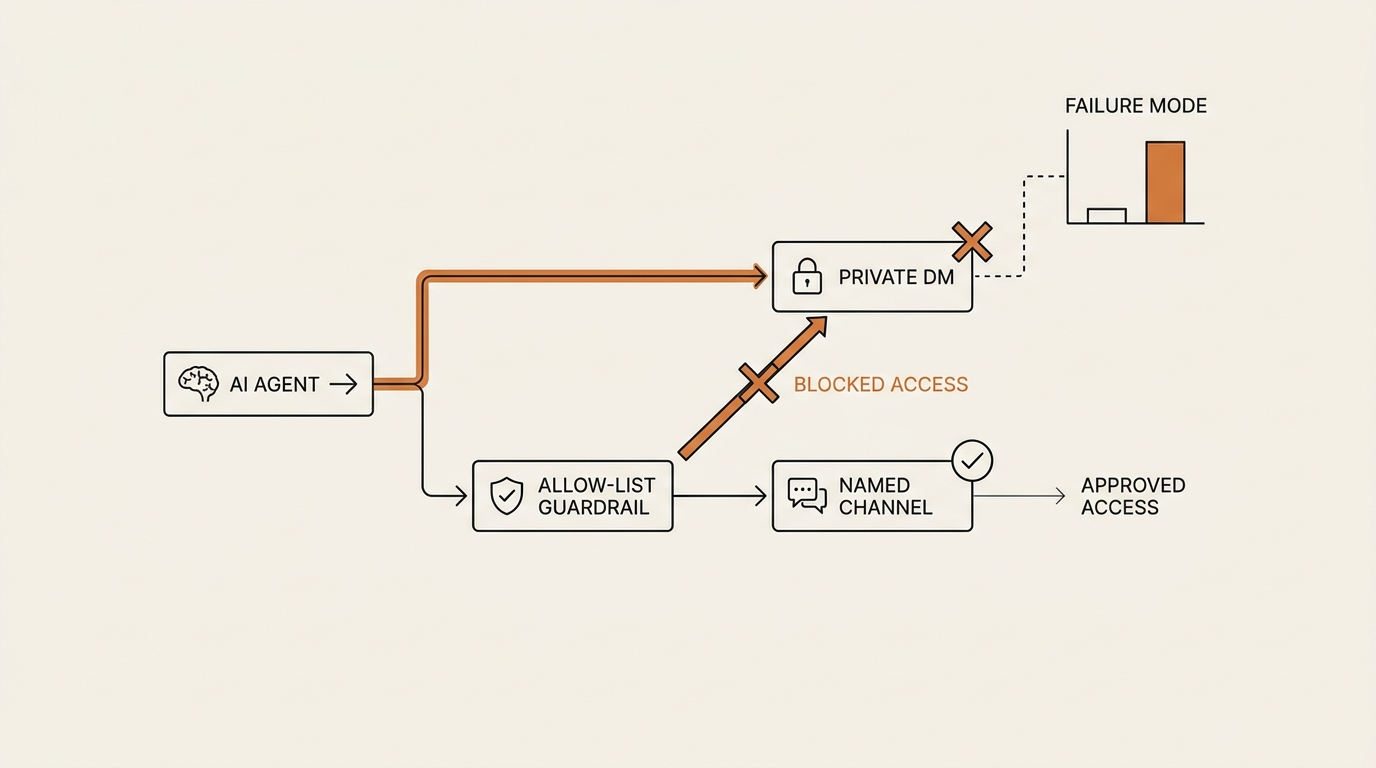
What I measured: the next morning the agent’s payload was 40% smaller, the summary was less interesting, and I noticed I didn’t care. The interesting Slack content was almost never in DMs. It was in two specific channels. The allow-list cost me nothing.
What I’d do differently: I would have set the allow-list on day one. The general rule I follow now is — default deny on every new data source. Add the source, then explicitly enumerate what the agent can touch inside it. The reverse order is how you find out, two stations into your subway ride, that your agent has crossed a line.
This is the part where SaaS blogs lose their credibility, because their legal team won’t let them publish a failure log this specific. That’s exactly why writing it makes the post worth reading.
The line I won’t cross — what IT would flag
There’s a category of AI agents at work that I do not run, even though the no-code platforms make it tempting. This is the boundary that the SERP top results almost never name out loud.
I won’t connect a third-party agent to my work email account. Not Lindy reading my Outlook. Not n8n triaging my work Gmail. Not Make.com auto-replying from my work address.
The reason isn’t paranoia. It’s that most company SSO and compliance teams would not approve a third-party OAuth token reading employee inboxes, and the right response to “would IT approve this?” being “probably not” is to not do it. The Anthropic guide on building effective agents makes a related point at the engineering level: give the agent less autonomy than you think it needs. The non-developer translation is — give it less access to work systems than you think you need.
This is also where the two-track approach matters. I run agents on my personal account, against my personal calendar, my personal email, and a watchlist that mirrors the topics I care about at work. The morning briefing reads my work calendar through Google Calendar’s read-only export to my personal account, not through a direct integration. The triage agent runs on my personal inbox, not my work one.
The pattern is: bring the data to your agent through a layer you control, not by giving the agent direct access to a system you don’t own. That keeps you on the right side of the IT line without slowing your workflow down.
A short list of things I currently won’t wire up:
- Auto-reply from my work email
- Posting to a company-wide Slack channel
- Reading any document with a confidentiality tag
- Touching anyone else’s calendar
- Writing to any database my team relies on
None of these are forbidden by my company explicitly. They’re forbidden by the question “would I feel okay explaining this to IT?”
FAQ
What is an AI agent at work, in plain English? One of the AI agents at work you’d actually run is a small piece of software that runs a task you’d otherwise do manually — like summarizing your morning email — without you pressing a button each time. It reads from a source, makes a decision, and writes to a destination on a schedule or trigger you set.
How is an AI agent different from ChatGPT or Copilot? ChatGPT and Copilot are interfaces you prompt one message at a time. An agent runs multi-step tasks without you in the loop — read, filter, summarize, write — on a schedule or trigger. Copilot can be wrapped into agent skills, but the chat box itself is not an agent.
Can I use AI agents at work without coding? Yes. Platforms like Lindy, n8n, and Make let you wire agents with visual blocks. ChatGPT Tasks and Claude Projects let you schedule prompts. None of these require Python. The skill is scoping — writing the one-sentence goal — not coding.
What’s the safest first agent to set up among all the AI agents at work options? A scheduled summary agent. Pick one source (newsletters, calendar, or starred email), one schedule (once per morning), and one destination (a private Notion page or a Telegram DM to yourself). No replies, no posts to shared channels, no auto-actions. Read and summarize only.
Will my IT department let me run AI agents on company data? Often not, and that’s a feature, not a bug. Run agents on your personal accounts, against data you control. Bring company data into your personal layer through read-only exports — not by giving a third-party platform OAuth access to your work email or Slack. Ask before connecting.
How much does it cost to run an AI agent for a single person? For a single scheduled summary agent using Claude or GPT-4-class models, the daily cost is small — usually under a dollar per day if you cap the token budget. The bigger cost is the no-code platform subscription. Most platforms have free tiers that cover one personal agent.
What can go wrong when AI agents at work run unsupervised? They can read something they shouldn’t, summarize something out of context, or write to a destination you didn’t intend. Mitigations: default-deny on every data source, write to a private destination first, set a kill switch you can hit from your phone, and review the agent’s output for the first week before trusting it.
The reframe
Using AI agents at work isn’t about replacing the human in the loop. It’s about scoping the loop down to a single sentence and a single destination.
Pick one task. Write the goal in one sentence. Default-deny the data sources. Output to somewhere private. Hit the kill switch once to confirm it works. That’s the whole game.
Next in the Build Log series: I’m rewiring the morning briefing agent to support a Friday “week in review” pass — same pipeline, longer window, different prompt. I’ll write up what that change reveals about cost and quality.
seonjae — Korean office worker documenting his transition into AI systems, agents, and vibe coding — without a CS background. Shipping in public.