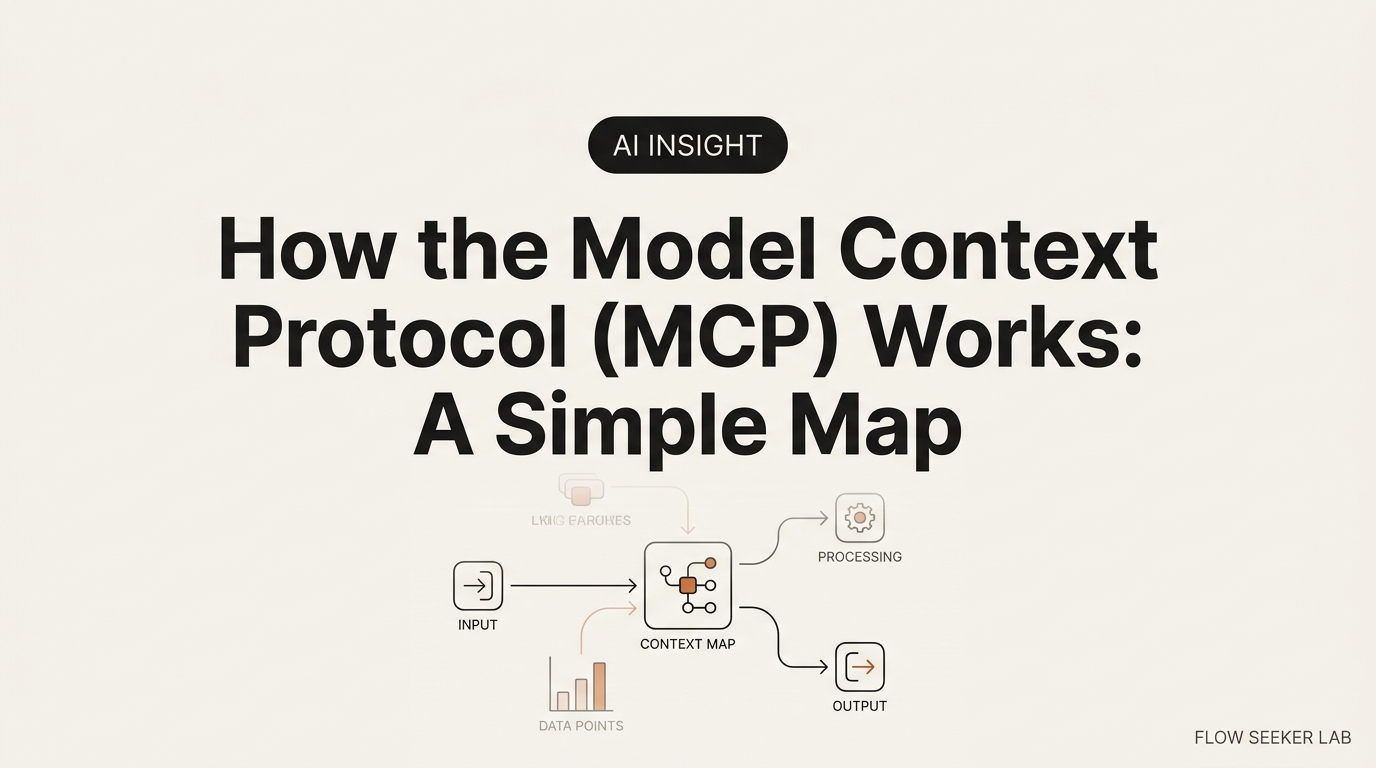
How the Model Context Protocol (MCP) Works: A Simple Map
How the Model Context Protocol (MCP) Works: A Non-Developer’s Map
One morning I opened Claude and there was a new panel called Connectors. Google Drive. Slack. A GitHub logo. A little “Add” button next to each.
I didn’t write a line of code. I just wanted to know what I was about to plug in. So here is how the Model Context Protocol (MCP) works, explained for someone who pays for Claude Pro but has never seen JSON in their life.
I’ll map the three moving parts, walk through what happens when you ask Claude to check your Drive, and give you the three-question filter I now run before I enable any connector.
MCP is a wall socket, not a wire
Think about the wall socket behind your desk.
You don’t know what’s inside the wall. You don’t need to. Every lamp, charger, and monitor ends in the same plug, and the same plug fits every socket in your apartment. That standard is the whole point. It means a lamp maker in Ulsan and a socket in your Seoul flat never have to meet.
The Model Context Protocol is that standard, but for AI tools. It’s a shared shape for the plug so any AI app can connect to any tool the same way.
Before MCP, every AI-to-tool connection was a custom wire someone hand-built. If you wanted Claude to read your Notion, someone wrote a Claude-to-Notion bridge. If you wanted ChatGPT to read the same Notion, someone wrote a second, different bridge. Ten AI apps and ten tools meant a hundred hand-soldered wires. Engineers call that the N×M problem, and it’s exactly as tedious as it sounds.
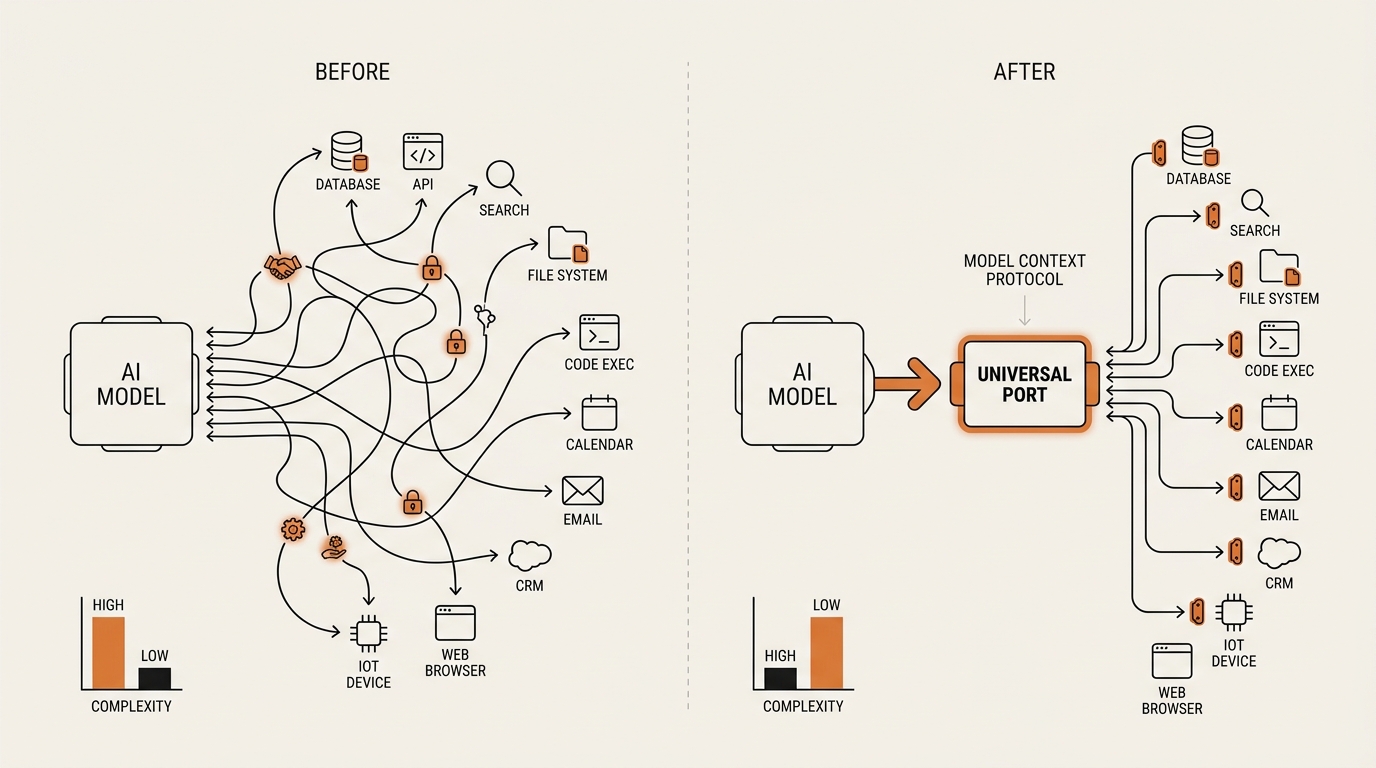
Anthropic released MCP as an open standard in late 2024, and the framing in their original announcement is the wall-socket one: stop building one-off bridges, agree on a port, and let every tool ship a plug that fits it. Since then OpenAI, Google, and a long list of tool makers have adopted the same port. You can read the neutral history on Wikipedia if you want the cross-vendor timeline.
Here’s the part that matters for us. You and I will never build the socket. We just decide what to plug in. That decision is the whole skill, and it isn’t a coding skill.
The three parts of the Model Context Protocol, in plain words
Every explainer draws the same host-client-server diagram, then buries it in protocol jargon. Let me map the three parts to things you already touch.
The host is the app you open. Claude Desktop. The ChatGPT app. Cursor, if you’ve wandered that far. The host is the thing with a window, a text box, and now a Connectors panel. It’s where you live.
The client is the invisible wiring inside the host. You never see it. It’s the part of the app that speaks the shared plug language on your behalf. One host runs one client per connection, quietly, in the background. If the host is your laptop, the client is the extension cord you never think about.
The server is the tool on the other end. Your Google Drive. Your Slack. A GitHub repo. A database at work. A “server” here is not a big machine in a rack — it’s a small piece of software that wraps a tool and exposes it through the standard plug. When you click “Add” on a Google Drive connector, you’re pairing your host with a Google Drive server.
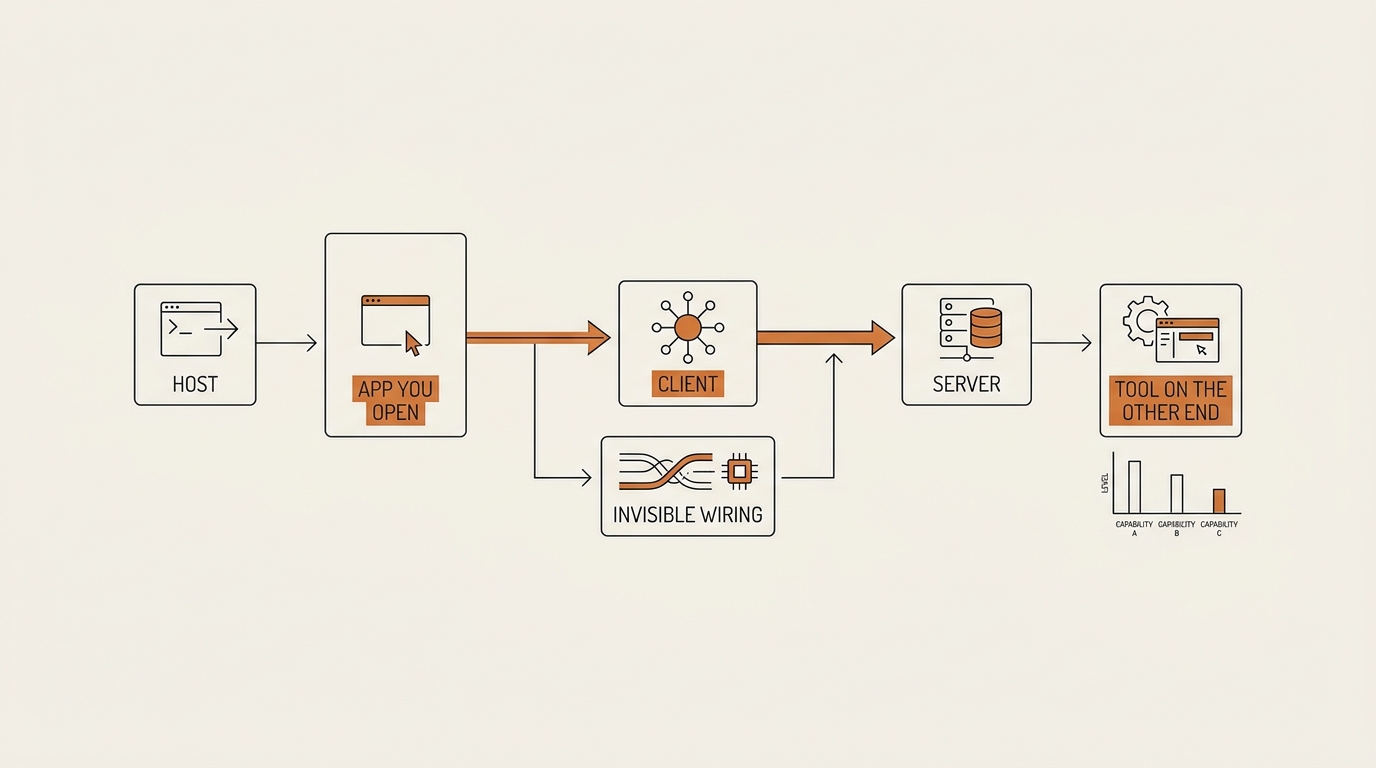
So the sentence to remember is short. The host is the app, the client is the wiring, the server is the tool. Everything else is detail.
The official docs go deeper — a server can offer three flavors of thing: tools (actions it can take), resources (data it can read), and prompts (canned instructions). You can skim the getting-started intro if you’re curious. For daily use you mostly care about one split: what a server can read versus what it can do. I’ll come back to that, because it’s the whole safety question.
One paragraph of under-the-hood, then I’ll stop. The host and server talk using a message format called JSON-RPC — basically a tidy way to say “here’s a request, here’s the reply.” That’s the plug’s electrical spec. You will never type it, read it, or debug it. It’s the socket’s internal wiring, and it stays inside the wall.
What actually happens when you ask Claude to check your Drive
Let me walk through one real request, slowly, at the level a non-coder can hold in their head.
You type: “Pull up my Q3 planning doc from Google Drive and summarize the risks.”
Step one — the host asks what’s available. Before doing anything, the client inside Claude asks the Google Drive server a simple question: what can you do? The server answers with a menu — search files, read a file, list folders. This is called tool discovery. It’s the host reading the label on the plug before using it.
Step two — the model picks a tool. Claude looks at your sentence and the menu, and decides it needs “search files” then “read a file.” It doesn’t guess your file’s location. It uses the search tool the server offered.
Step three — the call goes out. The client sends the actual request to the server: search for “Q3 planning.” The server runs that search inside your Drive, with your permission, and sends back results. Claude picks the right doc and asks to read it.
Step four — the result comes home. The server returns the document text. Claude reads it, writes your risk summary, and shows it in the chat window. The loop closes.
That’s it. Ask → discover → call → result. Four beats, running in a couple of seconds.
Notice what didn’t happen. Claude didn’t already “have” your files. It didn’t memorize your Drive. It asked, in real time, through a connector you enabled, and it could only touch what that connector was allowed to touch. That last clause is where all the trust lives, and it’s why I treat enabling a connector as a decision, not a click. This is the same instinct I use for how you’d actually use AI agents at work — scope first, enable second.
MCP vs function calling: the difference in one image
If you’ve read anything about AI tools, you’ve bumped into “function calling.” People blur it with MCP. They’re related but not the same, and the difference is easy to see once you drop the jargon.
Function calling is one app wiring up one tool by hand. A developer building an app decides, in advance, “my app can call these five functions.” The model can invoke them, but they live inside that one app. If another app wants the same tool, its developer wires it again from scratch. It’s a lamp with the wire soldered straight into the wall — works fine, but only there.
MCP is the universal socket that any app and any tool can share. The tool ships one plug. Claude, ChatGPT, and Cursor all fit that same plug. Build the connector once, and every MCP-speaking host can use it. It’s the difference between soldering wires and installing outlets.
Here’s the honest nuance: MCP still uses function calling underneath. When Claude picks “search files,” that’s a function call. MCP just standardizes how the tools are described and delivered, so the calls aren’t locked to one app. Think of function calling as the act of flipping a switch, and MCP as the wiring standard that makes every switch in the building work the same way.
| Function calling | Model Context Protocol | |
|---|---|---|
| Who wires it | Each app, separately | Tool ships one connector for all apps |
| Reusable across apps | No | Yes |
| What you see | Baked-in features | A Connectors panel you add to |
| The analogy | Wire soldered into the wall | A standard socket any plug fits |
For a working professional, the practical takeaway is small and useful. When a tool “supports MCP,” it means you can likely plug it into whatever AI app you already pay for — without waiting for that app’s maker to build a custom bridge.
Is MCP safe? A three-check filter before you enable a connector
Now the part every vendor post skips, because a definition can’t replicate it: the decision.
Enabling an MCP connector is not a coding decision. It’s a permissions and trust decision, the same kind you already make when an app asks to see your photos. A connector can be genuinely useful and still hand a lot of reach to software you didn’t write. So before I click “Add,” I run three checks. They take a minute.
Check 1 — Do I trust who published this server? A connector is software wrapping your tool. Is it made by the tool’s own company (Google’s official Drive connector) or by a stranger on a marketplace? Official-and-first-party gets a lighter look. Random-third-party gets a hard one. If I can’t tell who wrote it, I don’t plug it in.
Check 2 — What can it read, and what can it write or act on? This is the split that matters. A connector that can read my Drive is a small risk — worst case, it sees a file. A connector that can write, delete, send, or post is a different animal. Read-only is a window. Write access is a set of keys. I want to know which one I’m handing over, and I default to the smallest scope offered.
Check 3 — Can I revoke it, and do I know where? Every connector I keep, I need to be able to unplug in ten seconds. Before enabling, I find the off switch — in the app’s connector settings, and if it uses a Google or GitHub login, in that account’s “connected apps” page too. If I can’t find the revoke button, I treat that as a no.
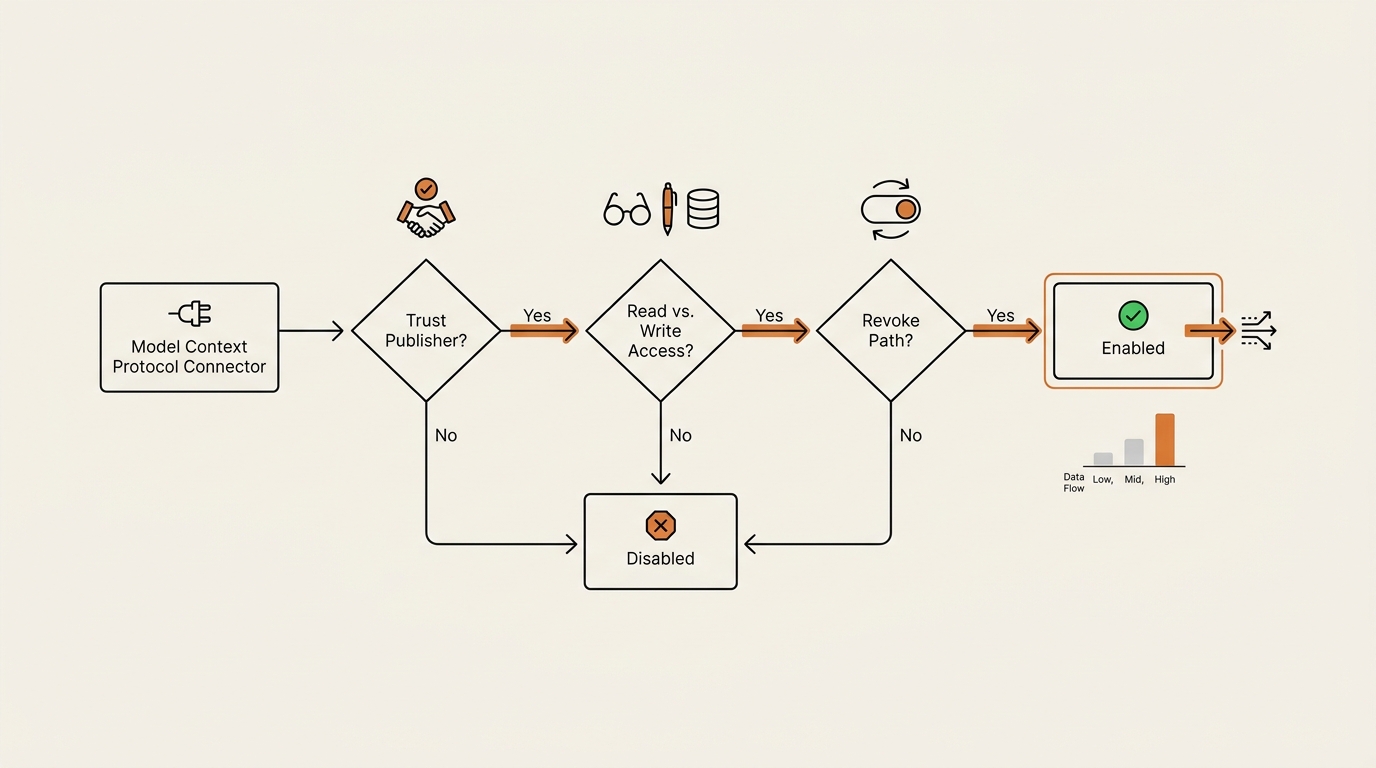
That’s the whole framework. Trust the publisher. Know read-versus-write. Keep the revoke path. It’s not fear — it’s the same hygiene you’d use before giving a new coworker a badge. You’d ask which doors it opens and how to deactivate it.
One rule I add for myself: I never enable a write-capable connector and an autonomous agent on the same day. Reading is reversible. Acting is not. I let a connector read for a week before I let anything act through it.
What broke: my first connector, and the thing I assumed
I’d love to tell you I ran that filter the first time. I didn’t. I built it after getting it wrong.
The first connector I enabled, I clicked straight through the permission screen. There was a line about “manage files,” and I read it as “see files.” I assumed read-only because I only wanted reading. The connector didn’t know that. I had granted write scope to a tool I’d used for about four minutes.
Nothing bad happened. But that’s luck, not a system. I’d handed keys and called them a window.
The second thing I got wrong was expecting it to “just know” my stuff. I asked Claude to find a doc and it came back empty. I assumed the connector was broken. It wasn’t — the file lived in a shared drive the connector’s scope didn’t cover. MCP doesn’t give an app magical sight into everything you own. It gives it a specific, scoped door. My mental model was “Claude can now see my Drive.” The real model is “Claude can now knock on the exact rooms this connector was granted.”
The fix wasn’t technical. It was slowing down for sixty seconds on the permission screen and reading manage as write. That single habit — read-versus-write before I click — is the check I’d hand my past self. The same reflex shows up when you build an AI agent without coding: the scope you grant is the risk you take.
If you want the broader open-ecosystem picture — MCP is an open standard, and it sits next to the open-source tooling wave — I dug into that in open-source LLM tools.
FAQ
What is the Model Context Protocol in simple terms? It’s a shared standard that lets any AI app connect to any tool the same way — like a wall socket that fits every plug. Before it, each AI-to-tool link was a custom wire. MCP replaces those wires with one universal port so apps like Claude and ChatGPT can reach tools like Drive or Slack.
Do I need to know how to code to use MCP? No. As a user, you never build a server or write JSON. You see a Connectors panel in your AI app and choose what to enable. The only real skill is a permissions decision: trust the publisher, know read-versus-write, and keep a revoke path. That’s a judgment call, not a coding one.
What is the difference between MCP and function calling? Function calling is one app wiring up one tool internally, and it doesn’t carry over to other apps. The Model Context Protocol standardizes how tools are described and shared, so a single connector works across Claude, ChatGPT, Cursor, and more. MCP actually uses function calling underneath — it just makes it portable.
Is MCP safe to use? It’s as safe as the connectors you enable. The protocol itself is a standard, not a risk. The risk is granting a tool more reach than you meant to — especially write access. Run three checks before enabling: who published it, what it can read versus write, and how to revoke it. Default to read-only and the smallest scope.
What is an MCP server versus an MCP client? The server is the tool side — a small piece of software wrapping your Drive, Slack, or GitHub and exposing it through the standard plug. The client is the invisible wiring inside your AI app that speaks to that server on your behalf. You interact with neither directly; you just add a connector, and the client pairs with the server.
Which AI apps support MCP? Anthropic’s Claude introduced MCP, and Claude Desktop plus Claude’s Connectors use it. OpenAI has adopted it for ChatGPT, Google has signaled support, and developer tools like Cursor speak it too. Adoption is wide enough that “supports MCP” increasingly means “plugs into the AI app you already pay for.”
The reframe: you’re not learning a protocol, you’re learning a permission
Here’s what changed for me. I kept trying to understand MCP like a spec — hosts, clients, servers, transports — as if passing a quiz would make the Connectors panel safe.
It won’t. The socket doesn’t need your understanding to work. What the socket needs from you is a decision about what to plug in and how much reach to hand it. The Model Context Protocol turned a hundred custom wires into one clean port, and in doing so it moved the only real question off the engineer’s desk and onto yours: do I trust this tool with read, or with write?
So don’t study the wiring. Study the plug you’re about to insert. Read manage as write, start read-only, and find the revoke button before you need it.
Next in this Framework Deep Dive series, I’m going to enable a single MCP connector for real, run one live task through it, and log exactly what it could and couldn’t see — the difference between what the permission screen promised and what actually happened.
seonjae — Korean office worker documenting his transition into AI systems, agents, and vibe coding — without a CS background. Shipping in public. This post is part of the Framework Deep Dive series.
One Comment